
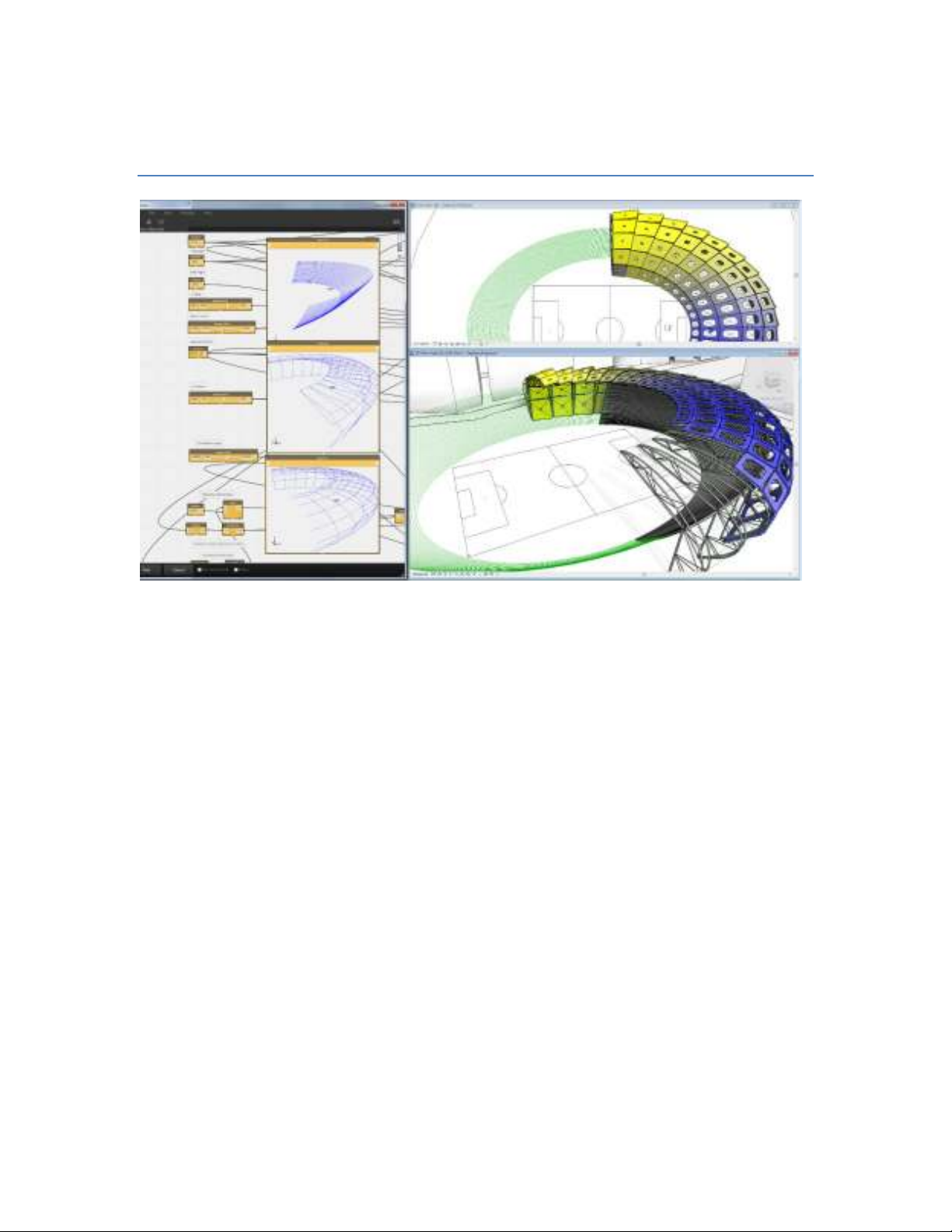
Dynamo: Visual Programming for Design
Contents
Description .............................................................................................................. 3
Dynamo Visual Programming .................................................................................... 3
Getting Around in Dynamo ....................................................................................... 4
The Basics ........................................................................................................... 4
The Dynamo Interface .......................................................................................... 4
A. Pulldown Menus ........................................................................................... 5
B. Search Bar ................................................................................................... 5
C. Node Library ................................................................................................ 5
D. Workspace ................................................................................................... 5
E. Execution Bar ............................................................................................... 5
Concepts, Definitions, Terminology ........................................................................ 5
Workspace ....................................................................................................... 5
Nodes .............................................................................................................. 6
Wires............................................................................................................... 7
Ports ............................................................................................................... 7

Dynamo: Visual Programming for Design
Page 2 of 56
Program Flow ................................................................................................... 7
Directionality of Execution ................................................................................. 8
Custom Nodes .................................................................................................. 8
Examples ................................................................................................................ 9
Create a Point, or “Hello World!” In Dynamo ........................................................ 10
Placing Families with Sequences, Ranges, Lines and Grids ..................................... 14
Nested Lists and Basic Data Management ............................................................ 19
Advanced Family Placement: Adaptive Components ............................................. 22
Get and Set Family Instance Parameters .............................................................. 26
Basic Math with the Formula Node ....................................................................... 28
Color ................................................................................................................. 32
Data Interop ...................................................................................................... 36
Attractor Pattern ................................................................................................ 42
Python: Script a Sine Wave ................................................................................ 46
Sharing and Reusing Algorithms with the Package Manager ................................... 50
Many More Examples .......................................................................................... 55
What Else Can Dynamo Do? ................................................................................... 55
Where to Learn More about Dynamo ....................................................................... 56

Dynamo: Visual Programming for Design
Page 3 of 56
Description
These tutorial will demonstrate how to use Dynamo Visual Programming for Autodesk®
Revit® software and Autodesk Vasari. The lab will provide users with resources and
step-by-step examples for automating geometry creation, adjusting family parameters
using external data, and sharing information with different design platforms.
Dynamo Visual Programming
Computational Design refers to the ability to link creative problem solving with powerful
and novel computational algorithms to automate, simulate, script, parameterize, and
generate design solutions. Computational Design has had a profound impact on
Architectural practice in recent years. Design practices, large and small, have begun to
invest in new computational capabilities that allow them to customize their process and
pursue new, innovative design agendas. Computation might be leveraged for a variety
of tasks such as automating a redundant production process or to construct an
expressive form-generator. Regardless of the end-use, what is clear is that designers
need frameworks that let them construct their own tools.
“Visual Programming Language” is a concept that provides designers with the means for
constructing programmatic relationships using a graphical user interfaces. Rather than
writing ‘code’ from scratch, the user is able to assemble custom relationships by
connecting pre-packaged nodes together to make a custom algorithm. This means that
a designer can leverage computational concepts, without the need to write code.
Dynamo is an open source Add-in for Autodesk Vasari and Revit. Dynamo allows
designers to design custom computational design and automation processes through a
node-based Visual Programming interface. Users are given capabilities for sophisticated
data manipulation, relational structures, and geometric control that is not possible using
a conventional modelling interface. In addition, Dynamo gives the designer the added
advantage of being able to leverage computational design workflows within the context
of a BIM environment. The designer is able to construct custom systems to control
Vasari Families and Parameters
Dynamo exposes a fundamentally new way of working with geometric information within
Autodesk Vasari and Revit. Users can create control frameworks for creating,
positioning, and visualizing geometry. The Visual Programming framework lets the user
create unique systems and relationships and expand how BIM can be used to drive
design ideation.
Dynamo: Visual Programming for Design
Page 4 of 56
Getting Around in Dynamo
The Basics
Dynamo is primarily a plug-in for Autodesk Revit and Vasari. It works in Revit 2013,
2014 and Vasari Beta 3, and this tutorial requires that you have one of these
applications installed. Dynamo can also run as a stand-alone application with all the list
and logic functionality, and with some experimental geometry tools available using the
Autodesk Shape Manager kernel. Work is also being done to port Dynamo functionality
to other platforms.
Dynamo is open source under the Apache 2.0 lisence. The software can be downloaded
from http://dynamoBIM.org, and source code is available at
https://github.com/ikeough/Dynamo.
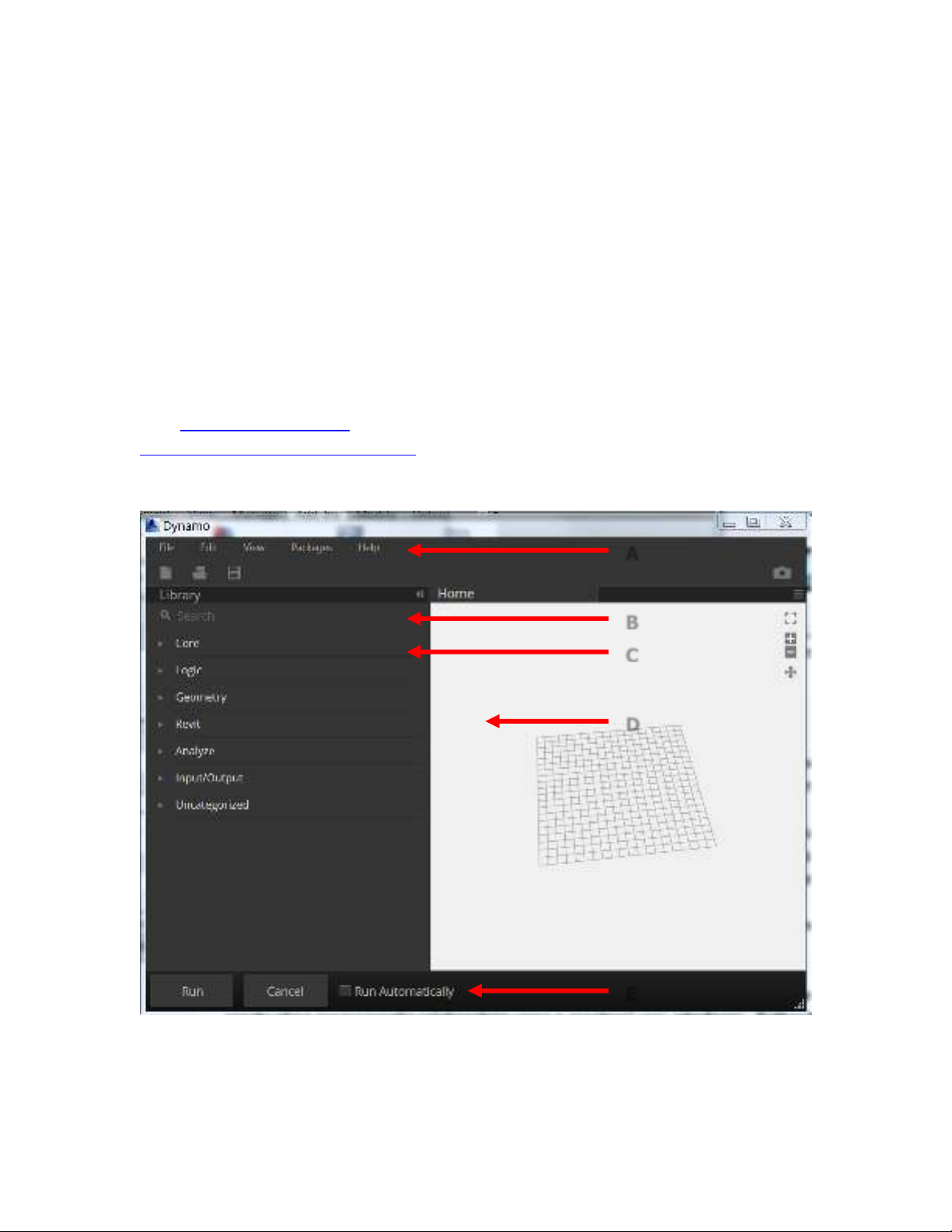
The Dynamo Interface
A
B
C
D
E

Dynamo: Visual Programming for Design
Page 5 of 56
A. Pulldown Menus
Use the File pulldown to Open dynamo files, make new ones, Save-As a new file name,
and export an image of your current workspace. Use edit to do copy/paste operations,
create new custom nodes, and add comments. Use the View pulldown to activate
background previews, view the console (log), and change wire appearance.
B. Search Bar
Use the Search Bar to find loaded Nodes
C. Node Library
Browser for picking nodes. Click on a node title to add to the Dynamo workspace
D. Workspace
The Workspace is the main environment for creation of Dynamo visual programs. The
Home Workspace is the default workspace. When a user creates or edits a custom
node, it will appear as a new tab.
E. Execution Bar
The Execution Bar allows the user to run or execute the current workspace
The “Run Automatically" checkbox will cause the workspace to run if the user changes
the workspace or any of the watched Revit Elements in Revit or Vasari The “Debug"
checkbox will invoke a more detailed method of execution
Concepts, Definitions, Terminology
Workspace
The active Workspace is the area where you interact with the elements of your visual
program. When you start Dynamo you are in a blank Home Workspace. You start
creating your visual program here by placing Nodes and connecting with Wires.



![Đồ họa lắp ráp trong Update Design và Migration: [Thông tin chi tiết/Hướng dẫn/Kinh nghiệm]](https://cdn.tailieu.vn/images/document/thumbnail/2015/20151001/vantu64dcdm3020/135x160/1997128451.jpg)





![Phân tích số liệu và biểu đồ bằng R: Tài liệu [Mô tả/Hướng dẫn/Kinh nghiệm chi tiết]](https://cdn.tailieu.vn/images/document/thumbnail/2026/20260430/ntu.danghuy@gmail.com/135x160/46211777946371.jpg)
![Tài liệu Nhập môn khoa học dữ liệu [Chuẩn nhất]](https://cdn.tailieu.vn/images/document/thumbnail/2026/20260401/baobinh_011/135x160/57531775122890.jpg)


%20--%3e%3cdefs%3e%3cstyle%3e%20.st0%20{%20fill:%20%23fff;%20}%20.st1%20{%20fill:%20%237800fa;%20}%20%3c/style%3e%3c/defs%3e%3cpath%20class='st1'%20d='M117.78,12.18H43.11c2.9,3.47,4.65,7.94,4.65,12.82,0,5.6-2.3,10.66-6.01,14.29h76.02l7.22-13.56-7.22-13.56Z'/%3e%3cg%3e%3cpath%20class='st0'%20d='M53.58,26.17h-.59v-1.46h.59v-4.96h2.83c1.78,0,2.67.94,2.67,2.82v5.76c0,1.87-.89,2.81-2.67,2.81h-2.83v-4.96ZM55.36,21.37v3.34h1.1v1.46h-1.1v3.34h1.01c.61,0,.91-.37.91-1.1v-5.93c0-.74-.3-1.1-.91-1.1h-1.01Z'/%3e%3cpath%20class='st0'%20d='M65.99,31.14h-1.8l-.31-2.07h-2.19l-.31,2.07h-1.64l1.82-11.39h2.62l1.82,11.39ZM65.28,18.04c-.25.46-.51.77-.75.94-.21.15-.47.22-.79.22-.26,0-.57-.07-.92-.22l-.38-.15c-.14-.05-.26-.07-.37-.07-.3,0-.53.18-.71.54l-.91-.68c.25-.46.51-.77.75-.94.21-.14.48-.21.79-.21.26,0,.57.07.92.21l.38.15c.14.05.26.07.37.07.3,0,.53-.18.71-.54l.91.68ZM61.91,27.52h1.73l-.87-5.76-.87,5.76Z'/%3e%3cpath%20class='st0'%20d='M74.53,26.89v1.52c0,1.91-.89,2.86-2.67,2.86s-2.67-.95-2.67-2.86v-5.93c0-1.91.89-2.86,2.67-2.86s2.67.95,2.67,2.86v1.11h-1.69v-1.22c0-.75-.31-1.12-.93-1.12s-.93.37-.93,1.12v6.15c0,.74.31,1.11.93,1.11s.93-.37.93-1.11v-1.63h1.69Z'/%3e%3cpath%20class='st0'%20d='M81.4,31.14h-1.8l-.31-2.07h-2.19l-.31,2.07h-1.64l1.82-11.39h2.62l1.82,11.39ZM75.9,19.2l1.52-1.91h1.71l1.51,1.91h-1.61l-.76-.95-.75.95h-1.61ZM77.32,27.52h1.73l-.87-5.76-.87,5.76ZM83.1,15.99l-1.76,1.91h-1.26l1.17-1.91h1.86Z'/%3e%3cpath%20class='st0'%20d='M84.86,19.75c1.78,0,2.67.94,2.67,2.82v1.48c0,1.87-.89,2.81-2.67,2.81h-.85v4.28h-1.79v-11.39h2.64ZM84.01,21.37v3.86h.85c.58,0,.87-.36.87-1.08v-1.71c0-.71-.29-1.07-.87-1.07h-.85Z'/%3e%3cpath%20class='st0'%20d='M93.51,19.75c1.78,0,2.67.94,2.67,2.82v1.48c0,1.87-.89,2.81-2.67,2.81h-.85v4.28h-1.79v-11.39h2.64ZM92.66,21.37v3.86h.85c.58,0,.87-.36.87-1.08v-1.71c0-.71-.29-1.07-.87-1.07h-.85Z'/%3e%3cpath%20class='st0'%20d='M98.8,31.14h-1.79v-11.39h1.79v4.88h2.03v-4.88h1.83v11.39h-1.83v-4.88h-2.03v4.88Z'/%3e%3cpath%20class='st0'%20d='M105.36,24.55h2.46v1.62h-2.46v3.34h3.09v1.63h-4.88v-11.39h4.88v1.63h-3.09v3.18ZM108.17,17.29l-1.76,1.91h-1.26l1.17-1.91h1.86Z'/%3e%3cpath%20class='st0'%20d='M112.2,19.75c1.78,0,2.67.94,2.67,2.82v1.48c0,1.87-.89,2.81-2.67,2.81h-.85v4.28h-1.79v-11.39h2.64ZM111.35,21.37v3.86h.85c.58,0,.87-.36.87-1.08v-1.71c0-.71-.29-1.07-.87-1.07h-.85Z'/%3e%3c/g%3e%3ccircle%20class='st1'%20cx='25'%20cy='25'%20r='20'/%3e%3cpath%20class='st0'%20d='M32.78,19.27c2.92,0,4.43,2.55,5.28,5.33l.71,2.17c.14.38-.33.75-.71.75h-5.61c.19-.33.24-.71.09-1.08l-.75-2.45c-.43-1.32-.99-2.64-1.79-3.77.75-.57,1.65-.94,2.78-.94h0ZM25,18.38c3.25,0,4.9,2.78,5.89,5.89l.76,2.45c.14.42-.33.8-.8.8h-11.69c-.42,0-.94-.38-.8-.8l.75-2.45c.99-3.11,2.64-5.89,5.89-5.89h0ZM25,11.35c1.74,0,3.11,1.37,3.11,3.11s-1.37,3.11-3.11,3.11-3.11-1.41-3.11-3.11,1.41-3.11,3.11-3.11h0ZM17.27,19.27c1.08,0,1.98.38,2.73.94-.8,1.13-1.37,2.45-1.74,3.77l-.8,2.45c-.14.38-.05.75.09,1.08h-5.56c-.42,0-.9-.38-.75-.75l.71-2.17c.9-2.78,2.41-5.33,5.33-5.33h0ZM17.27,12.91c1.51,0,2.78,1.27,2.78,2.83s-1.27,2.83-2.78,2.83-2.83-1.27-2.83-2.83,1.27-2.83,2.83-2.83h0ZM32.78,12.91c1.56,0,2.78,1.27,2.78,2.83s-1.23,2.83-2.78,2.83-2.83-1.27-2.83-2.83,1.27-2.83,2.83-2.83h0ZM27.07,28.56v.09c0,.57-.24,1.08-.61,1.46h0v.05c-.38.33-.9.57-1.46.57s-1.08-.24-1.46-.61h0c-.38-.38-.61-.9-.61-1.46v-.09h1.41v.09c0,.19.05.38.19.47v.05c.09.09.28.19.47.19s.38-.09.47-.19v-.05c.14-.09.24-.28.24-.47t-.05-.09h1.41ZM30.99,28.56v.09c0,1.65-.66,3.16-1.74,4.24-1.08,1.08-2.59,1.79-4.24,1.79s-3.16-.71-4.24-1.79l-.05-.05c-1.04-1.08-1.7-2.55-1.7-4.2v-.09h1.41v.09c0,1.27.47,2.4,1.27,3.25h.05c.85.85,1.98,1.37,3.25,1.37s2.4-.52,3.25-1.37c.85-.8,1.37-1.98,1.37-3.25v-.09h1.37ZM34.99,28.56v.09c0,2.78-1.13,5.28-2.92,7.07-1.79,1.79-4.29,2.92-7.07,2.92s-5.23-1.13-7.07-2.92c-1.79-1.79-2.92-4.29-2.92-7.07v-.09h1.41v.09c0,2.4.94,4.53,2.5,6.08,1.56,1.56,3.72,2.5,6.08,2.5s4.52-.94,6.08-2.5c1.56-1.56,2.5-3.68,2.5-6.08v-.09h1.41Z'/%3e%3c/svg%3e)